

OCR Text Recognition -- How to Make Scanned PDFs Searchable and Editable
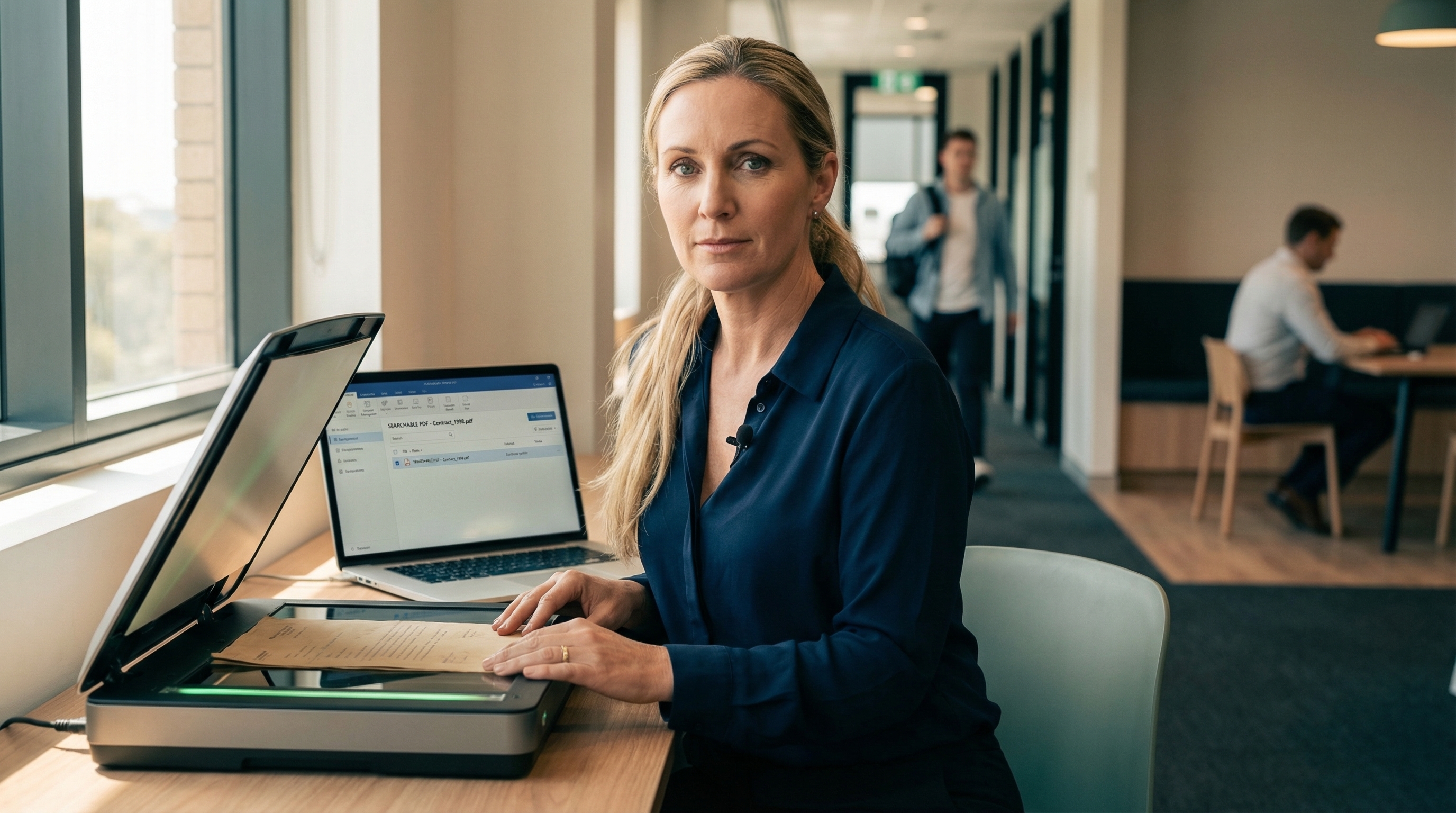
If you have ever tried to search for text in a scanned PDF and found nothing, or tried to copy text and got gibberish, the document is missing OCR. Optical character recognition — OCR text recognition — is the technology that converts scanned images of text into actual searchable, selectable, editable text.
For anyone working with scanned documents, archived paperwork, or legacy files, OCR is the difference between a useful digital document and a collection of page images.
What Is OCR and When Do You Need It?
When you scan a paper document or receive a PDF created from a scan, the resulting file contains images of pages — not text. The PDF viewer shows you what looks like text, but the computer sees only pixels. You cannot search it, copy from it, or edit it without OCR processing.
OCR software analyses the image, identifies characters, and creates a text layer that sits over the original image. The result is a searchable PDF that looks identical to the original but allows full text search, copy and paste, and in many cases direct editing.
You need OCR when you are digitising paper archives, processing scanned contracts or correspondence, making legacy documents accessible, or converting scanned PDFs into editable Word documents. OCR is also essential for compliance — many government and legal archiving requirements mandate searchable PDF/A format.
OCR Software Options
Desktop PDF Editors with Built-in OCR
Tungsten Power PDF (Standard and Advanced) includes high-quality OCR that converts scanned PDFs to searchable documents. The OCR engine supports multiple languages and handles mixed text-and-image documents well. Power PDF Advanced adds batch OCR processing for converting large numbers of scanned files in one operation — essential for digitisation projects.
Power PDF’s OCR also enables conversion from scanned PDF to editable Word, Excel, or other formats. The accuracy depends on scan quality, but results are consistently good with standard business documents.
Adobe Acrobat Pro includes OCR through its Scan and OCR tool. The implementation is mature and produces good results. Adobe’s cloud-based OCR is also available for limited use through the free Acrobat Reader.
PDF-XChange Editor includes OCR in both its free and paid editions on Windows. The OCR quality is reasonable for English-language documents.
Free OCR Options
Google Drive offers free OCR. Upload a scanned PDF or image to Google Drive, then open it with Google Docs. Google automatically runs OCR and creates an editable document. The accuracy is decent for clear scans but may struggle with poor quality originals, complex layouts, or non-English text.
Tesseract is a free open-source OCR engine originally developed by HP and now maintained by Google. It is command-line only and requires technical knowledge to use, but the OCR quality is competitive with commercial products. It supports over 100 languages.
Free online OCR tools exist but typically have strict file size limits and require uploading your documents to external servers.
Getting the Best Results from OCR
OCR accuracy depends primarily on the quality of the source document. Clean, high-resolution scans at 300 DPI or above produce the best results. Skewed pages, low contrast, small text, and unusual fonts all reduce accuracy.
For business documents (letters, reports, forms), modern OCR engines from leading vendors generally achieve high accuracy rates on good quality scans. For older or degraded documents, accuracy drops and manual review may be needed.
Tips for better OCR results: scan at 300 DPI minimum, use black and white mode for text-only documents, ensure pages are straight, and clean up any marks or stains before scanning if possible.
OCR for Australian Government and Legal Compliance
Many Australian government agencies and legal practices are required to maintain searchable digital archives. OCR is the enabling technology that makes this practical. Power PDF Advanced’s batch OCR capability is particularly relevant for agencies processing large backlogs of scanned documents into searchable PDF/A format.
Of course, the fastest way to avoid scanning altogether is to create documents digitally in the first place. Speech recognition software Australia offers professionals the ability to dictate documents directly, bypassing paper entirely.
For a broader look at PDF software options, see our guide to the best PDF editors in Australia. For converting between formats after OCR, see our PDF converter guide.
Contact us for a free 15-day Power PDF trial.

Ready to see PDF Software Australia in your organisation? Get a free trial and tailored proposal.
Request Information